First, there is this blank page. A blank page with a few hard-to-understand indications, in English. The number 503 appears here, and you also often see the following two words there: “service unavailable”.
And then there is this feeling of distress, tinged with confusion. All of a sudden, your site has become unavailable. Just like that, without warning. No doubt about it: you are facing a 503 error on WordPress.
To get rid of it as quickly as possible, follow our guide. In this article, you will discover the causes of this error, as well as 6 detailed practical solutions, with screenshots to support them, to fix it right away.
If this does not help you resolve the problem, feel free to call on our WordPress-specialized agency.
What is a 503 error?
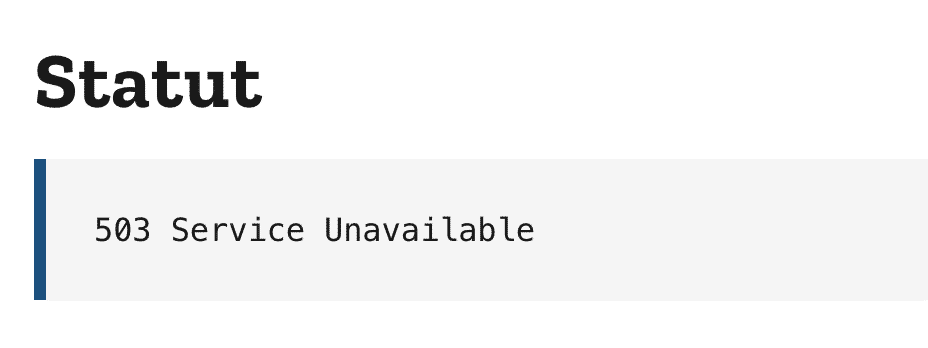
A 503 error indicates that your web hosting server cannot respond to a request made by a web browser. As a result, the target page cannot be displayed, and the site you want to browse is temporarily unavailable (“service unavailable”).
If we take a few seconds to look at the technical side, you should know that a 503 error is an HTTP error (on WordPress, there are also PHP, MySQL, and JavaScript errors).
In this regard, Mozilla’s browser developer documentation tells us that the number 503 corresponds to “an HTTP server error response code”.
That’s it for the theory. In practice, a 503 error prevents the webmaster that you are from accessing the administration interface (back office) of your WordPress site via the standard login page.
As you’ll see a little later in this article, you will therefore need to use your FTP client to identify the source of the error and fix it.
What does a 503 error look like?
A 503 error can be quite confusing for you, because it provides almost no indication of the source of the problem.
Here is an example of a typical page that may appear on your screen when this error decides to make your life difficult:
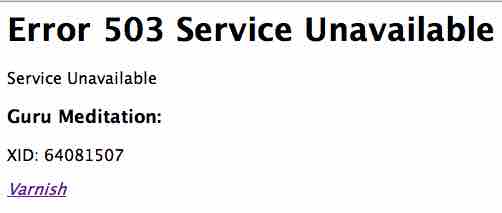
In terms of clarity, we’ve seen better… And to top it all off, note that this page can also appear in different forms, displaying error messages with the following labels, most often in English:
- Error 503 Service Unavailable;
- 503 Error;
- Error 503: Backend Unavailable;
- 503 Service Unavailable;
- HTTP 503 Error or HTTP Error 503;
- HTTP Error 503;
- HTTP 503;
- HTTP Error 503 status code.
- HTTP Error 503: The Service is Unavailable.
- 503 Service Temporary Unavailable, etc.
Why does this kind of unpleasant message suddenly appear without you asking for anything? Here are some answers just below.
What are the main causes of a 503 error?
Mozilla’s documentation, mentioned a little earlier in this article, provides a first concrete clue.
According to it, generally, a 503 error “ occurs because the server is down or inaccessible due to maintenance or overload”.
You are now a little further along, but you will see right away: other causes can make your site temporarily unavailable. Let’s break down the most important ones.
Cause No. 1 of the 503 error: server overload
A 503 error message on your WordPress site may first appear on screen when your hosting server is overloaded.
In concrete terms, this means that it is unable to handle an influx of visits during a traffic spike, especially if the server is shared (you share its resources and storage space with other webmasters).
An overload can also be due to attacks caused by malware (malicious software) or bots (robots) that spam your site for the sole purpose of harming you.
Cause No. 2: maintenance of the hosting server
After overload, it’s time for maintenance, which is the second cause of an HTTP 503 error.
To operate at full capacity, a web server needs to be maintained in order to function properly and remain secure. It is therefore sometimes updated, making your site unavailable.
Generally, web hosts carry out this type of operation at night so that it has as little impact as possible on website availability. Some hosts – not all – will also take the trouble to notify you in the event of a major maintenance deployment.
However, rest assured: most of the time, these operations take place without you even noticing.
Your server may also become temporarily unavailable when you update your WordPress site’s plugins and themes.
In this case, the most widely used CMS (Content Management System) in the world enters what it calls Maintenance Mode.
The following message may then appear on your screen:

Cause No. 3: a plugin or theme with faulty code
While your WordPress plugins and theme can cause problems when you update them, they can also cause a 503 error on WordPress if they are poorly coded.
This happens when they contain a PHP script that cannot be interpreted correctly by the server. Unable to display the requested request, the server becomes unavailable.
In the same vein, you may also run into a nice 503 when you decide to add a piece of custom code – in jargon, this is called a snippet – to your WordPress site.
In the event of a syntax error or faulty code, your site may crash and the connection becomes impossible. No one can access your services anymore.
Good to know: Even though it is less common than the first three, a faulty DNS configuration can also be the cause of a 503 error. For your information, DNS is the acronym for Domain Name System. It is a server that translates your domain name (e.g.: maintenance-wp.fr) into an IP address, Wikipedia explains.
As you can see, there are several reasons that can explain the presence of a 503 error. Although annoying, it can disappear automatically almost as quickly as it appeared.
If it continues to stay stuck on your screen, you won’t have a choice. You’ll have to roll up your sleeves to get rid of it.
For the detailed instructions, head to the next section.
6 solutions to fix a 503 error on WordPress
#1 Reload the error page
You may have already experienced this. Sometimes, a very simple workaround can make a 503 error on WordPress disappear in the blink of an eye.
The recipe for the magic formula? Simply refresh the unavailable page in your web browser.
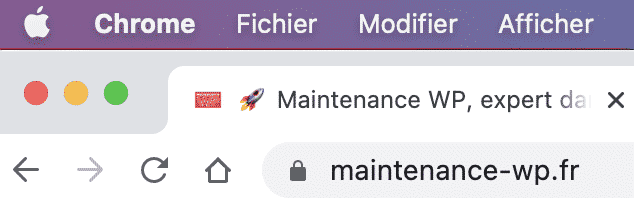
To do this, press the F5 key on your keyboard, or click the “refresh” icon in your web browser:
With a bit of luck, your web server will have gotten back on track in the meantime, and the page you want to view will be accessible again (its status is normal).
Feel free to repeat this operation for a few minutes to check that everything has returned to normal.
#2 Check your plugins to resolve a 503 error on WordPress
Refreshing your page doesn’t fix things? Roll up your sleeves. You’re going to check that the source of the error isn’t one of your plugins.
To begin with, there’s a problem: you can no longer connect to your site from its visible interface (front-end), because no page can be displayed.
To access it, you have two options:
- use an FTP client (File Transfer Protocol). This is software that allows you to connect to your hosting server so you can manage the files and folders that make up your WordPress site;
- go through your hosting provider’s admin area. For your information, one of the most famous is called cPanel. Many hosting providers use it, especially on shared servers.
In this article, we’ll opt to use FTP software, namely Filezilla. Free and open source, Filezilla is also one of the most popular tools, compatible with all platforms.

If it doesn’t suit you, you can also turn to Cyberduck (macOS and Windows, free) or Transmit (macOS, paid).
Step 1: Connect to the FTP client
Install FileZilla on your computer, then log in using the credentials provided by your web host.
In particular, you will need to enter the following details:
- the host;
- the port;
- the ID or username;
- the password.

Step 2: Create a new plugins folder
To fully understand, you should know that FileZilla is divided into two sections:
- on the left, you can access all the files and folders on your local site (your computer);
- on the right, you have the files and directories located on your remote site (the hosting server).
Go to the right-hand section, in public_html. Depending on your web host, this folder may have another name, such as htdocs or www.
For your information, this public_html is the root of your site. Inside it, you will find all the directories and files of your website.

Double-click the wp-content folder, then rename the plugins folder inside it, for example by calling it plugins-error.
Continue by creating a new folder that you will name plugins (like the old one). WordPress will then automatically deactivate all your plugins.
Step 3: Try to display your site
Now it’s time to go back to your browser to try to display your site. You will be faced with two options:
- The site is displayed again. Log in using your WordPress credentials, then reactivate each plugin one by one, checking your page display each time.
Delete the plugin causing the HTTP 503 error from your FTP, in the wp-content > plugins folder. Once the operation is complete and all your plugins have been reactivated, remember to delete theplugins-erreurfolder from your FTP; - The 503 error is still there. In this case, you need to look for the problem elsewhere, since your WordPress plugins do not seem to be the cause.
While waiting to move on to the next step, delete thepluginsfolder from your FTP and rename theplugins-erreurfolder toplugins.
Good to know: To avoid as many issues with plugins as possible, choose those listed in the official directory. In particular, their code is checked by a dedicated team before they are added, which guarantees a certain level of quality. Also pay attention to the frequency of updates, ratings, and user reviews. The better they are, the more likely you are to find a reliable plugin. Incidentally, these tips also apply when choosing your theme.
#3 Check your theme
Your plugins aren’t to blame? Don’t lose heart—the 503 error may be coming from your theme.
The steps to follow are similar to those detailed in the previous subsection. In short, you need to:
- Access the wp-content > themes directory.
- Download the folder for your active theme by right-clicking and selecting “Download”. Place it somewhere safe on your computer, or even on an external hard drive.
- Delete the theme you just downloaded (right click > Delete).
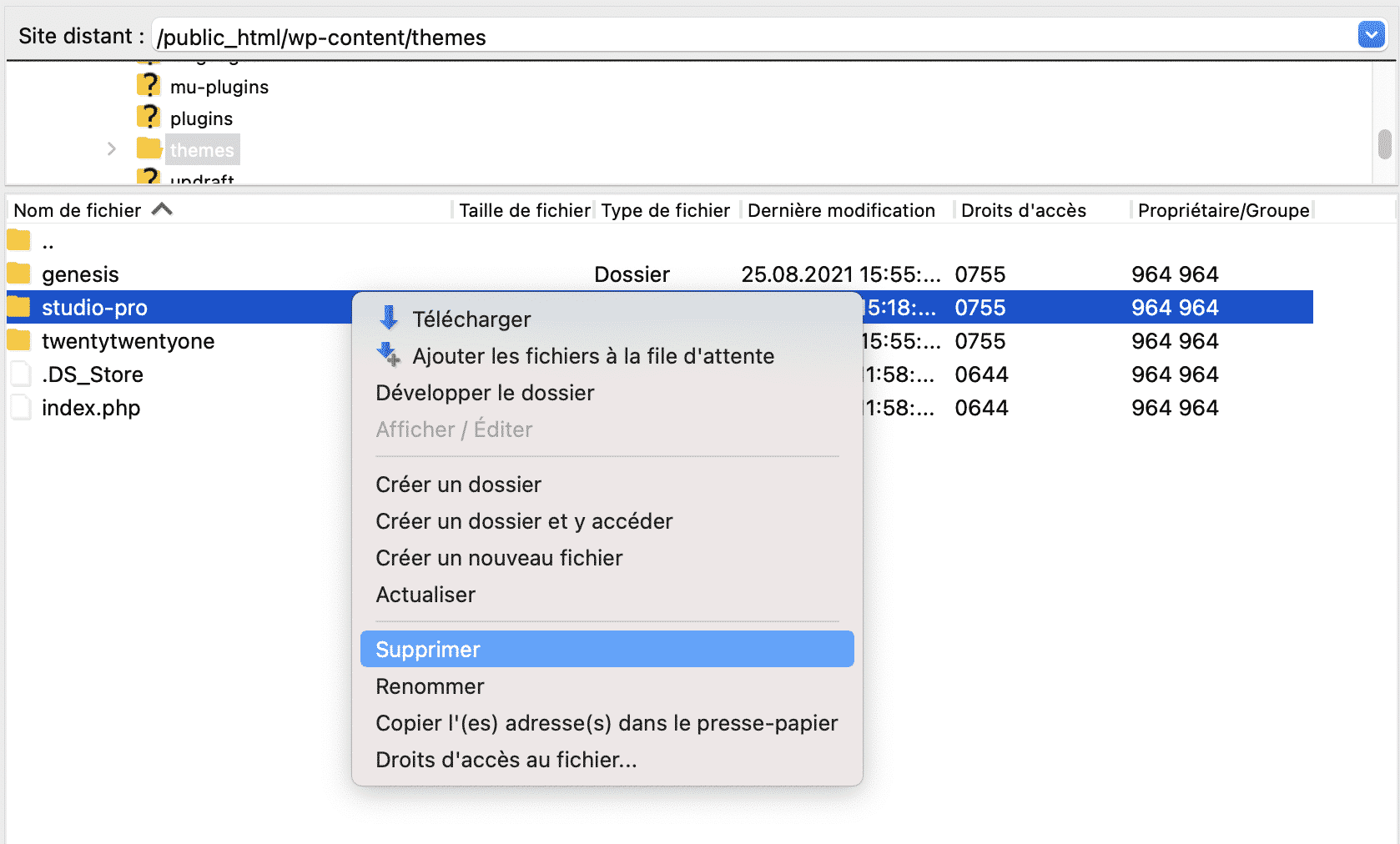
In principle, WordPress will then automatically activate one of its default native themes. At the time of writing, the most recent native theme was called Twenty Twenty-Two.
You may see a different theme on your end, whose name will start with Twenty something.
Go back to your site and check whether that darn 503 error is still there:
- it has disappeared. Great—your theme was probably the cause. Replace it with another one or, if you want to keep it, contact the theme’s support team to explain the problem;
- the error remains. Reinstall your theme—the one you previously downloaded to your computer—by uploading it to your FTP.
#4 Use WordPress debugging
At this point, you know that this 503 error on WordPress is not coming from either your plugins or your theme.
The error may be due to a simple piece of PHP code. To try to find out, you can enable WordPress “debug” mode.
To do this, enable a PHP constant called WP_DEBUG. You will find it in the wp-config.php file, which is located at the root of the site (in the public_html folder in our example) in your FTP client.
In this file, manually replace the value “false” with “true” on the line below:
define( 'WP_DEBUG', true );
define( 'WP_DEBUG_LOG', true );
Any PHP-related errors will appear in a log file named debug.log, accessible on your FTP via the following path: wp-content > debug.log.
Warning: Since this solution is more technical than the previous two, skip it if you don’t feel comfortable with the procedure. In this regard, WordPress does not recommend using WP_DEBUG on a production site, but rather locally and on test sites.
#5 Optimize the database
Displaying errors via debug mode didn’t produce anything? What if the root of the problem was in your MySQL database, which stores all of your site’s content (plugins, themes, revisions, comments, settings, etc.).
The older your site gets, the more your database (DB) tends to grow by accumulating information, and the more likely it is to have trouble functioning properly.
If it is not optimized, it can sometimes generate a 503 error. To take care of it, you can use a dedicated plugin. Among the options, you have in particular:
- WP-Optimize (free);
- Advanced Database Cleaner (freemium);
- WP Rocket (premium). This caching plugin has a very handy tab for optimizing your database. Another interesting thing about it: it can also reduce Heartbeat API activity, which can be responsible for a 503 error. By controlling Heartbeat, you can save some server resources.
These plugins will help you do a thorough cleanup, but first, contact your hosting provider, who may offer an option for this.
Speaking of hosting providers, discover tips for improving the server resources allocated to you in the final subsection.
#6 Increase your server resources
Remember? A 503 error code is linked to your server. Sometimes, it is also possible that it no longer has enough resources to function properly.
Change your hosting plan to resolve a 503 error
If you are hosted on a shared server, it may no longer be powerful enough to handle sharp increases in traffic, for example.
Contact your hosting provider to explain your problem. They may advise you to switch to a higher-tier plan, better suited to your current needs.
Another possibility: switch to dedicated web hosting (just for you), or specialized WordPress hosting. Performance will be better, but the price will also be higher than with shared hosting.
In any case, it’s always worth discussing your 503 error with your web host. Even if your hosting plan is still suitable, they may be able to help you identify the cause of the problem.
Increase the WordPress memory limit
If you’re the persistent type, also try increasing the PHP memory capacity allocated to WordPress, which is sometimes too low with certain web hosts.
To do this, add the following code to the “wp-config.php” file:
define('WP_MEMORY_LIMIT', '512M');
Good to know: If you use a CDN (Content Delivery Network) offered by your web host (or by a third-party solution), be wary of this service, which helps speed up the display of your pages. And for good reason: it can sometimes cause 503 errors on your WordPress site! To be sure, disable it to check whether this is the case for you.
And if it’s still not working, what should you do?
You now have a broad overview of the 503 error. Throughout these lines, you have learned about the main causes of this error, as well as step-by-step solutions to resolve it.
Since no one is immune to this type of error occurring, we recommend that you frequently back up your site (files + database), so you are better protected in the event of a problem.
And if, after reading all our advice and our action plan, you are unable to overcome this HTTP error, or you don’t feel comfortable taking action on your own, the Maintenance WP teams can support you in resolving a 503 error.
Our WordPress support service will offer you a tailor-made solution that meets your needs quickly, professionally and efficiently.